A simple task and reminder app anyone can use
If you can read, you can use it. No login, no clutter and nothing to learn. Open it and start. Use it for everyday tasks, or to run your jobs if you work for yourself.
Eight things that make eazie different
Most task apps keep adding. eazie keeps taking away, until only what you need is left.
Simplicity, perfected
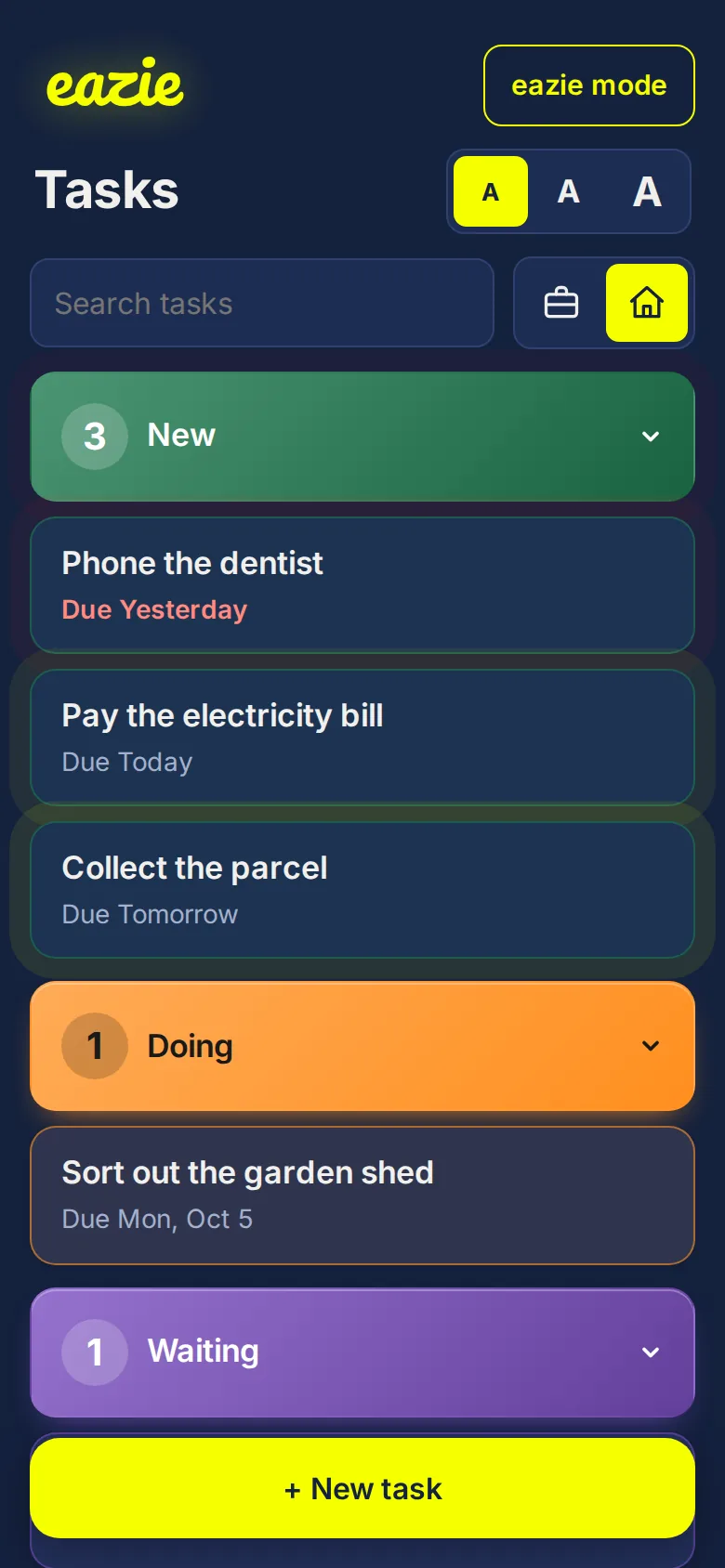
One screen, plain words and four clear steps. There is nothing to learn.
See how simple →If you can read, you can use it
Every button says what it does. No hidden menus and no jargon.
Made for older adults
Adjustable text size, strong contrast and eazie mode. Designed with dementia and Alzheimer's in mind.
eazie for older adults →Works instantly
Open it and start typing. Nothing to set up, and it opens offline after your first visit.
Only what you need, nothing you don't
A title is all it takes. Due dates, repeats and notes are there only if you want them.
What is (and isn't) in eazie →Possibly the simplest reminder tool there is
Anything due pulses on screen, so it is hard to miss. Yellow when it is coming up, red when it is overdue.
See it in action
Text that grows with you
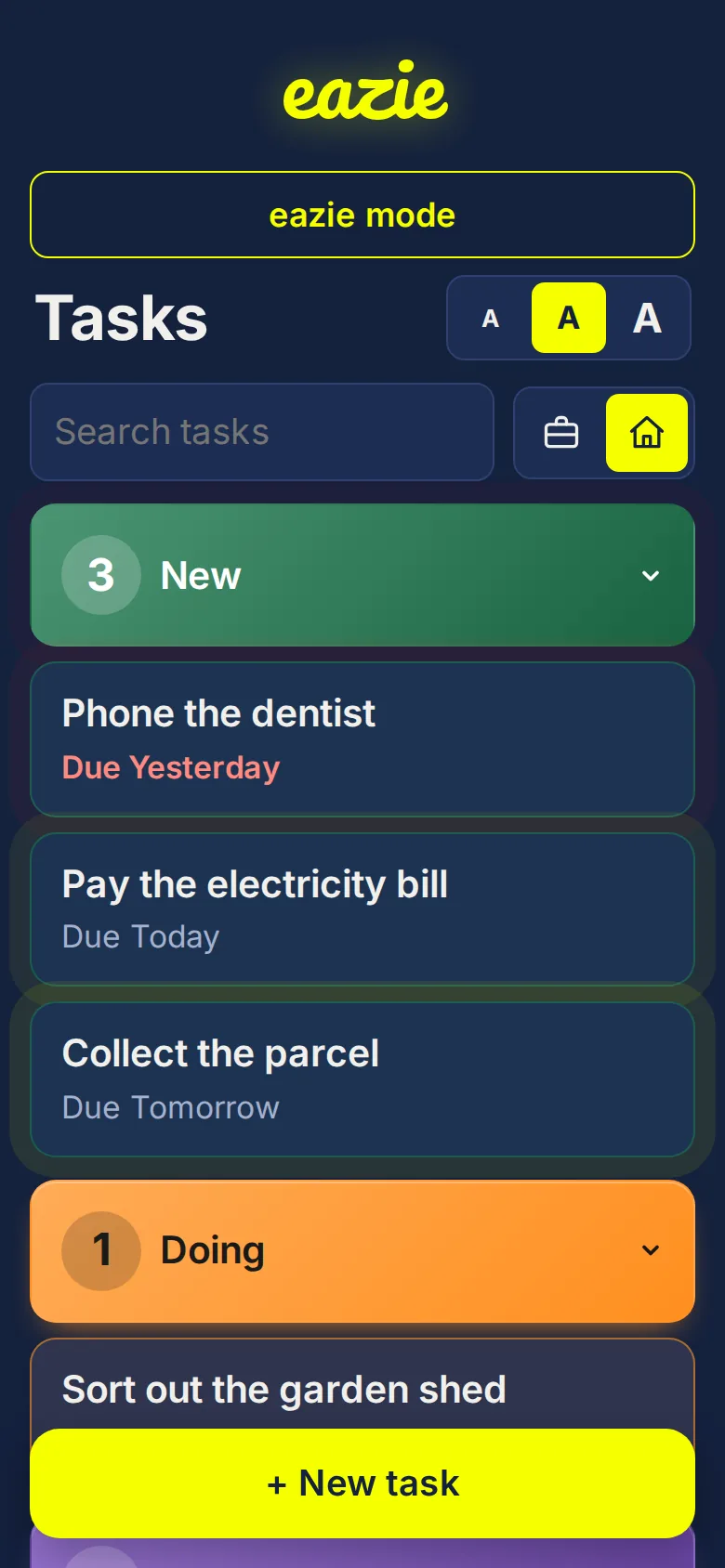
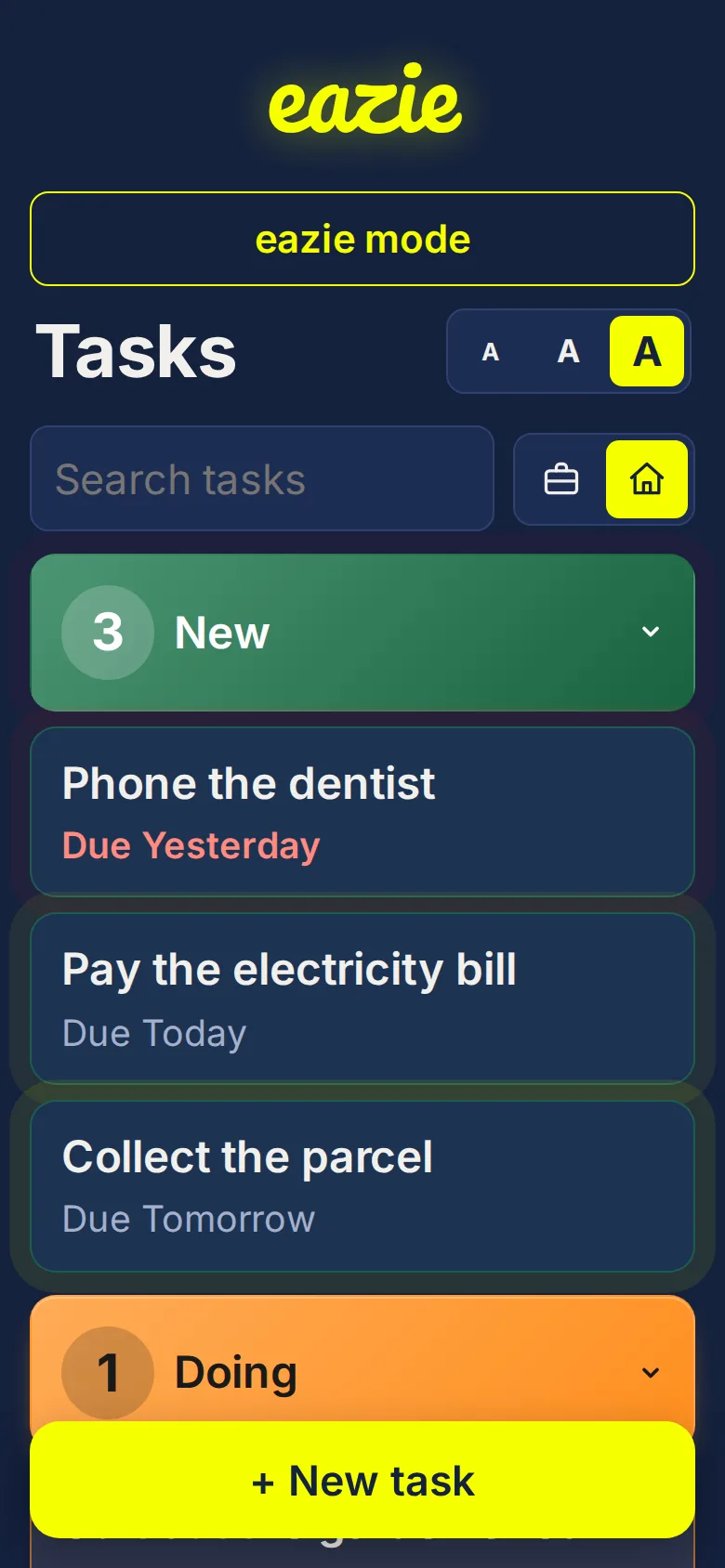
Three sizes, switched with one tap at the top of the screen. Bigger text, bigger buttons.
eazie mode
One tap makes the screen calmer: slightly larger, no animation, and the extras like job numbers are hidden.
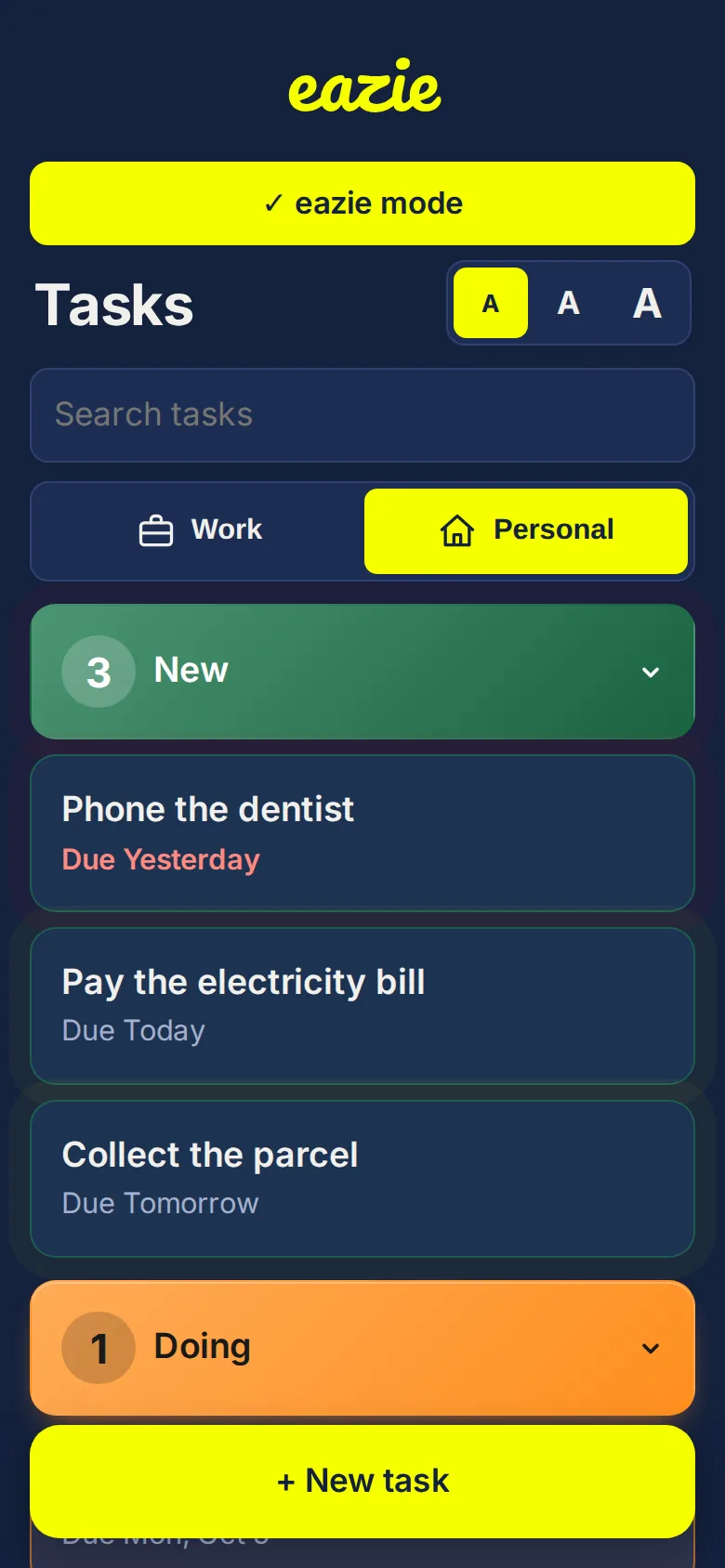
Things that need attention pulse
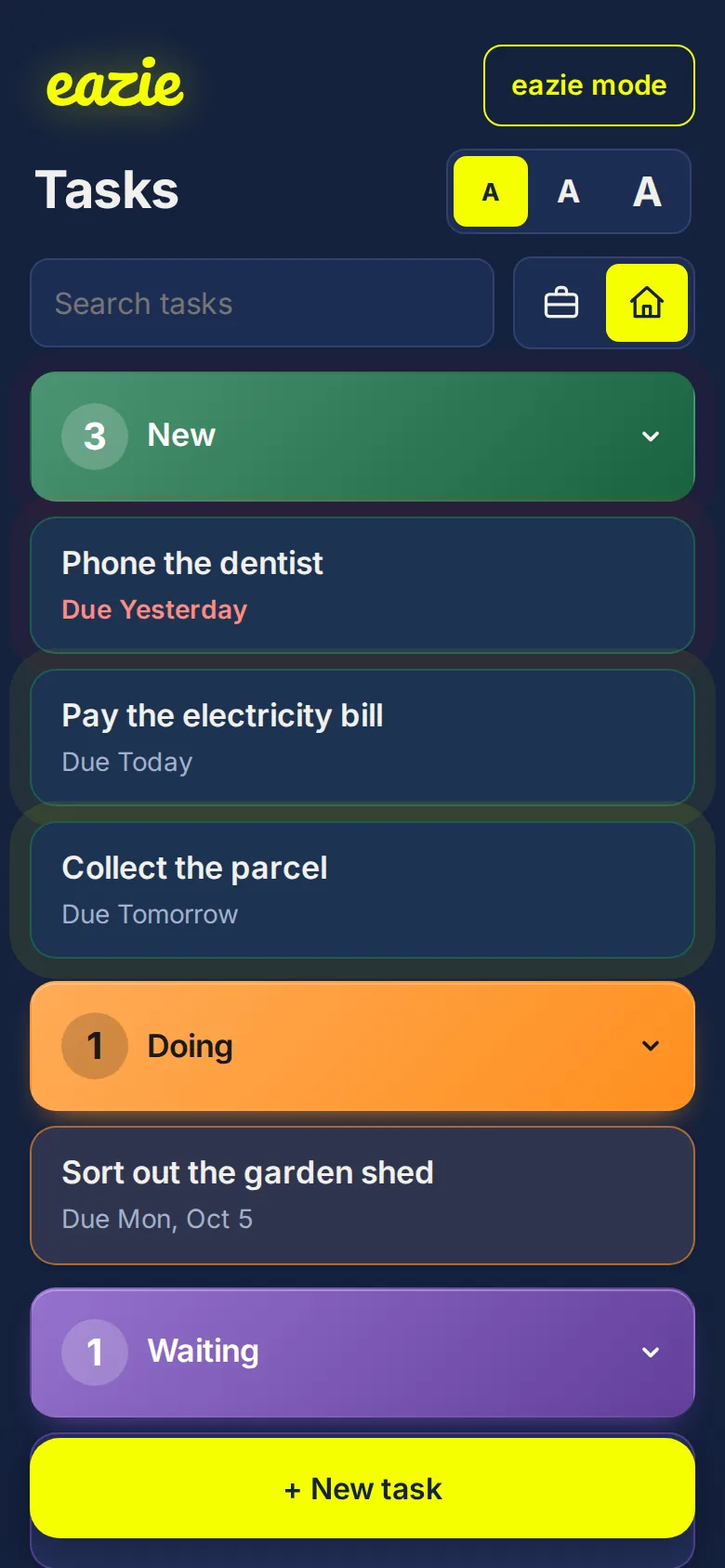
A soft yellow pulse for tasks due today or tomorrow. A bright red pulse when something is overdue.
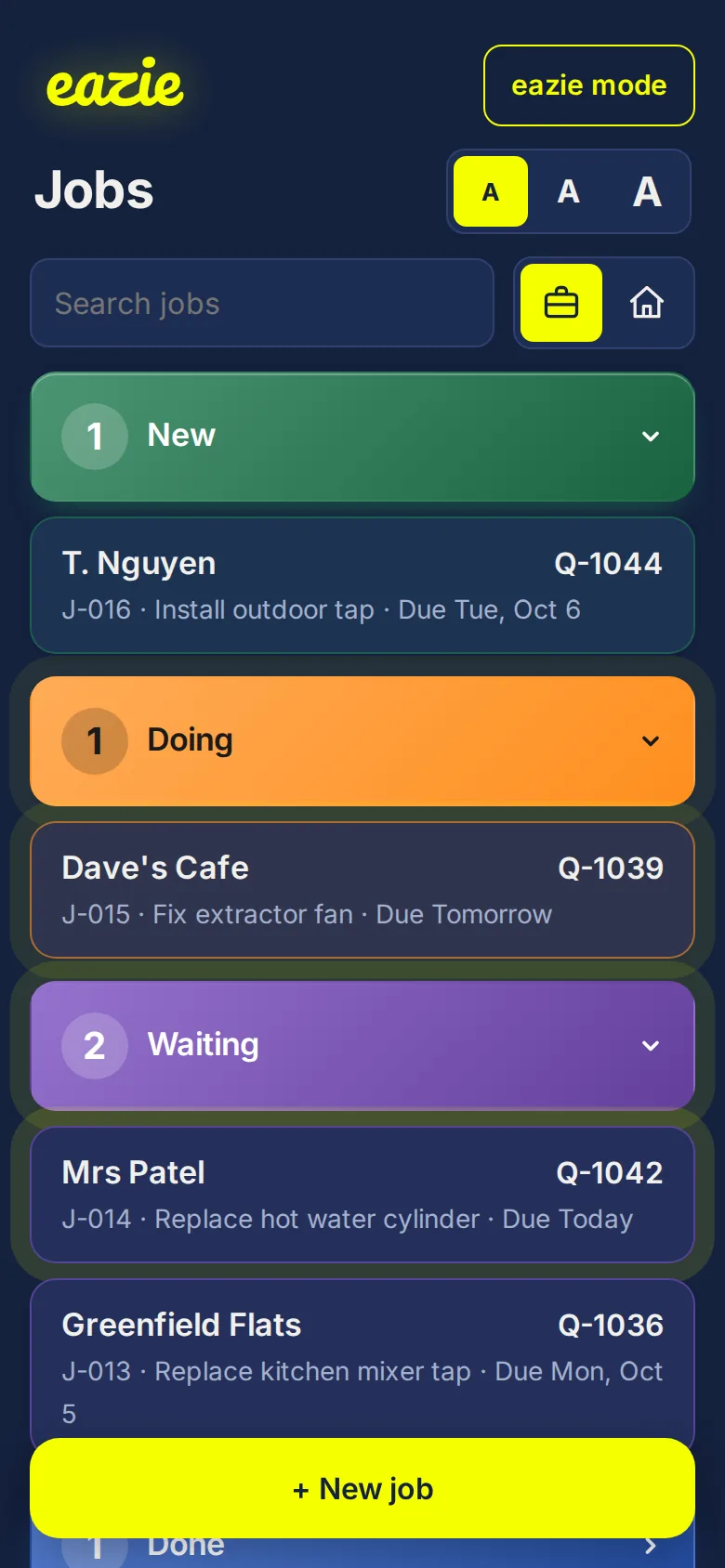
Running your own jobs? eazie does that too
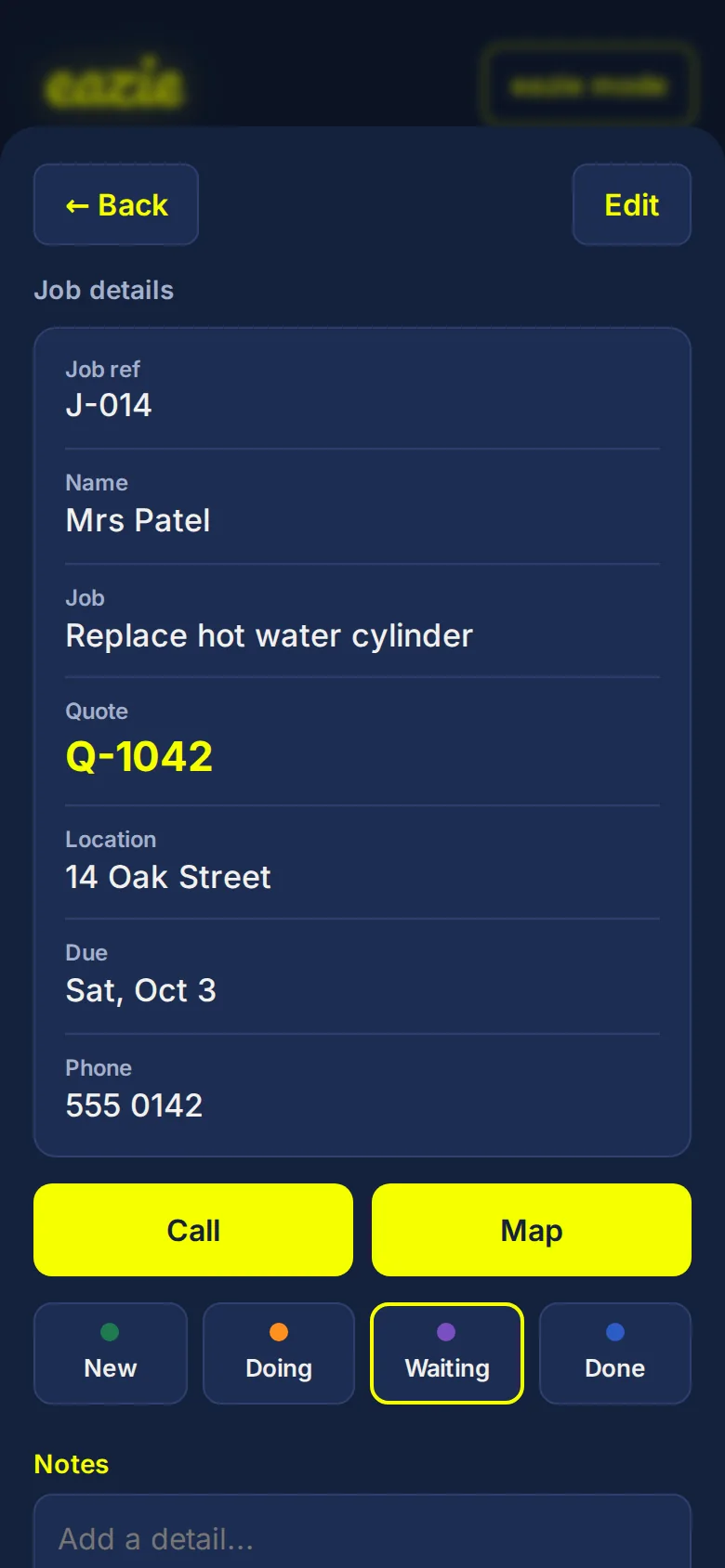
For one-man-band tradies, eazie is job tracking with everything taken out except what you use. Add a job, move it from New to Doing to Waiting (on a quote approval or materials) to Done. Notes and a timeline remember everything. A week view shows what is on, day by day. No login, no integrations.
Built for the one-person business
Customer, quote, location, due date, a one-tap Call and a one-tap Map. Nothing else to learn.
How it works
Type a title
Tap + New task and write what you need to do. That is the only thing required.
Say where it is up to
New, Doing, Waiting or Done. The colours match, and each one has its name on it.
Tick it off
Finished tasks move to Done. Add a due date, a repeat or a reminder-ahead only if you want one.
Who eazie is for
Common questions
Do I need an account?
No. There is nothing to sign up for and no password to remember.
Where is my list stored?
On your own device, in your browser. We never see it. You can save a backup file and restore it on another device. See the privacy policy.
Does it work without internet?
Yes. After your first visit it opens offline.
Can I use it on my phone and my computer?
Yes, but each device keeps its own separate list.
Does eazie send notifications?
No. Items that are due today, tomorrow or overdue pulse on screen when you open it.
Is it suitable for someone with dementia or Alzheimer's?
It is designed to be as simple as possible, but every person is different. Try it together first. eazie is an everyday organiser, not a medical device, so please do not rely on it for medication or anything safety-critical.
Can I add it to my home screen?
Yes. On Android tap Install when it appears. On iPhone tap Share, then Add to Home Screen.
Can I make the text bigger?
Yes. There are three text sizes, and eazie mode makes everything a little larger and calmer.
Is there a week view?
Yes. Switch from List to Week to see your jobs and tasks laid out from Monday to Sunday, with anything overdue at the top. Use the arrows to look at other weeks.
Can I keep a task out of sight until it is nearly due?
Yes. On a personal task, Remind me ahead hides it until 1 day, 1 week, 2 weeks, 1 month or 2 months before it is due. Then it appears on your list. eazie does not send alerts, so it shows up when you open it.
Can I use eazie to track jobs for my business?
Yes. Switch to the Work view to track jobs from New to Done, with quote numbers, locations, notes and a timeline. See job tracking for tradies.